> For the complete documentation index, see [llms.txt](https://docs.domino.run/docsv2/llms.txt). Markdown versions of documentation pages are available by appending `.md` to page URLs; this page is available as [Markdown](https://docs.domino.run/docsv2/developer-resources/launching-a-new-telegram-mini-app-for-domino-quests.md).
# Launching a new Telegram Mini App for Domino Quests
Launch a Telegram mini app from Zero using only Domino
## 🚀 Getting Started with Domino Mini Apps
Domino makes it easy to launch Telegram Mini Apps for your community.\
This guide walks you through setting up your bot with **@BotFather** and connecting it to Domino.
***
### 📌 Chapter 1 – Create Your Telegram Mini App Bot
1. Open [@BotFather](https://t.me/BotFather) in Telegram.
2. Send the command:
```
/newbot
```
3. Give your bot a **name** (e.g. *Concordium Quests*).
4. Choose a unique **username** ending with `bot` (e.g. *ConcordiumQuestsBot*).
5. Send:
```
/newapp
```
6. Enter the **bot username** you just created.
7. Add a **title** (e.g. *Concordium Quests*).
8. Add a **description** (e.g. *Earn rewards by doing tasks!*).
9. Upload a **bot logo**.
10. For *App Short Name*, type:
```
/empty
```
11. Enter your Domino Quests URL:
```
https://[yoursubdomain].domino.page/quests
```
12. Add an **App Name** (e.g. *ConcordiumQuests*).
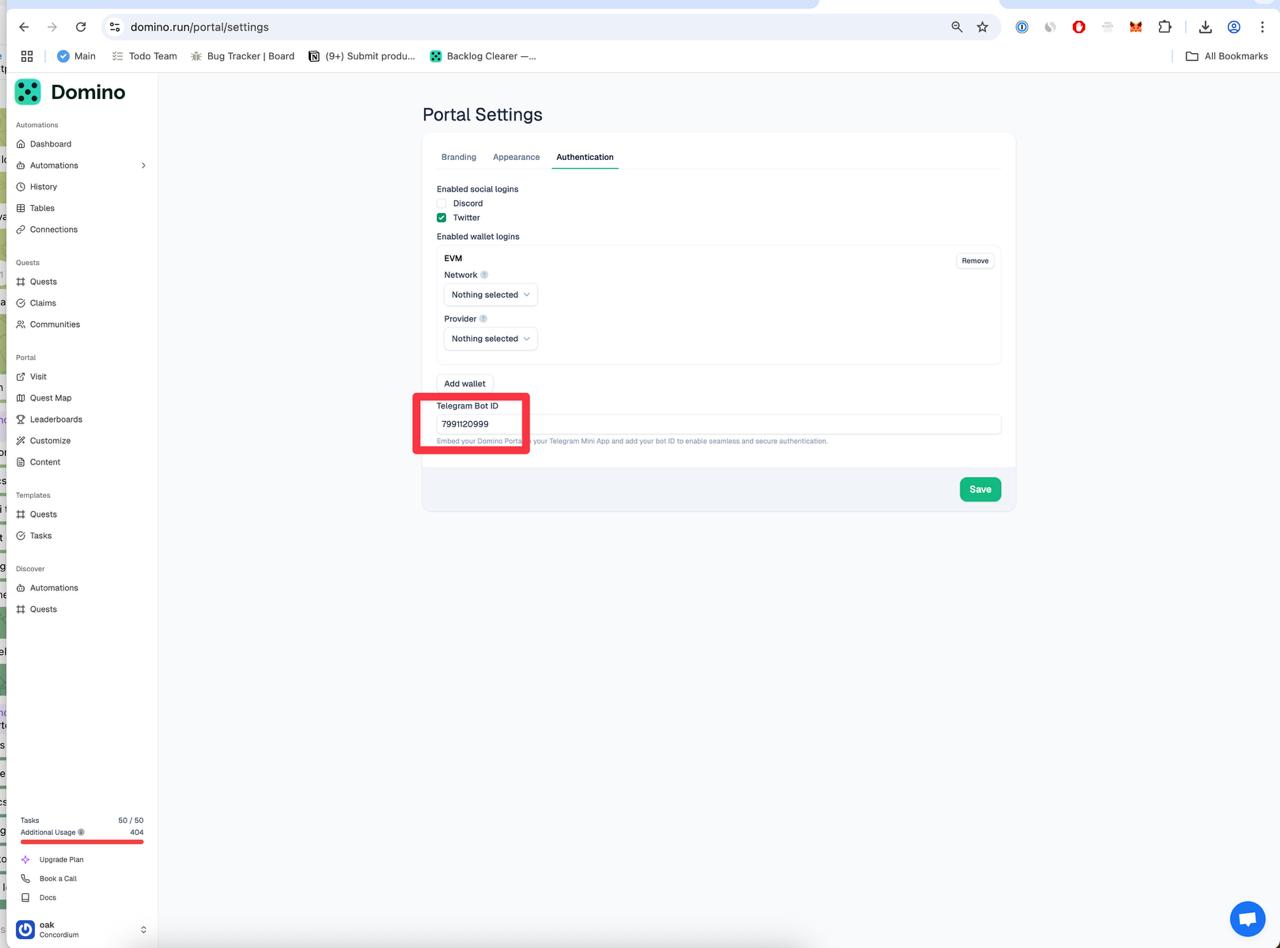
👉 Once done, copy your **Bot ID** and paste it into Domino:\
[Domino Portal → Settings](https://domino.run/portal/settings)
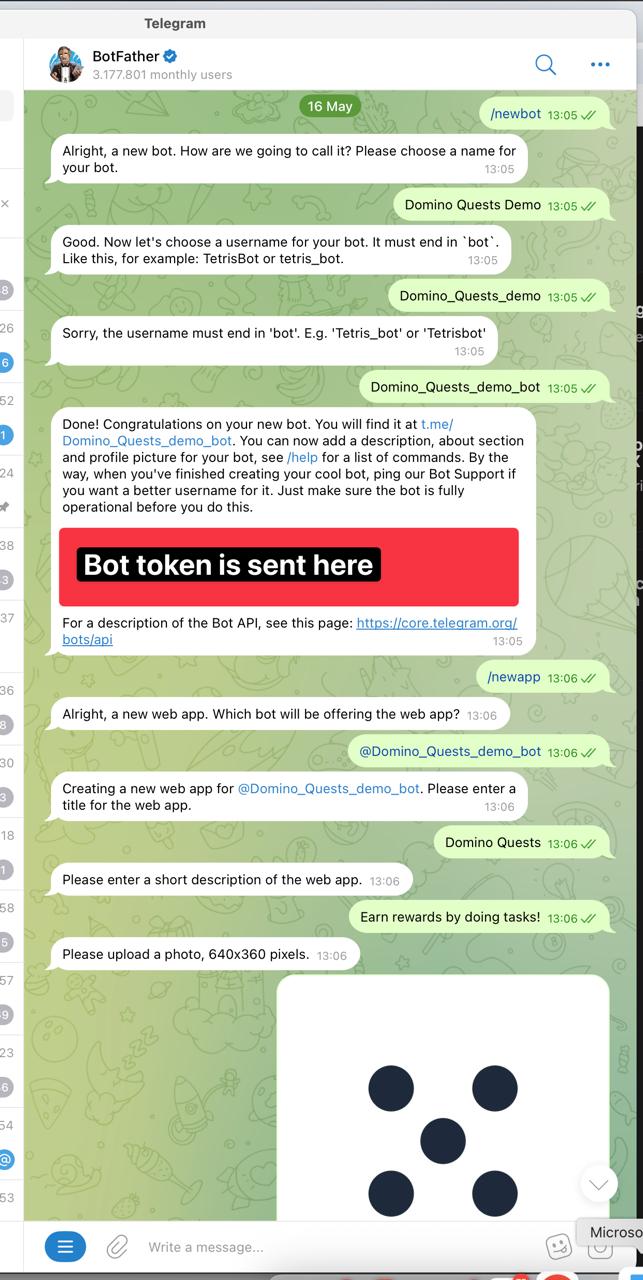
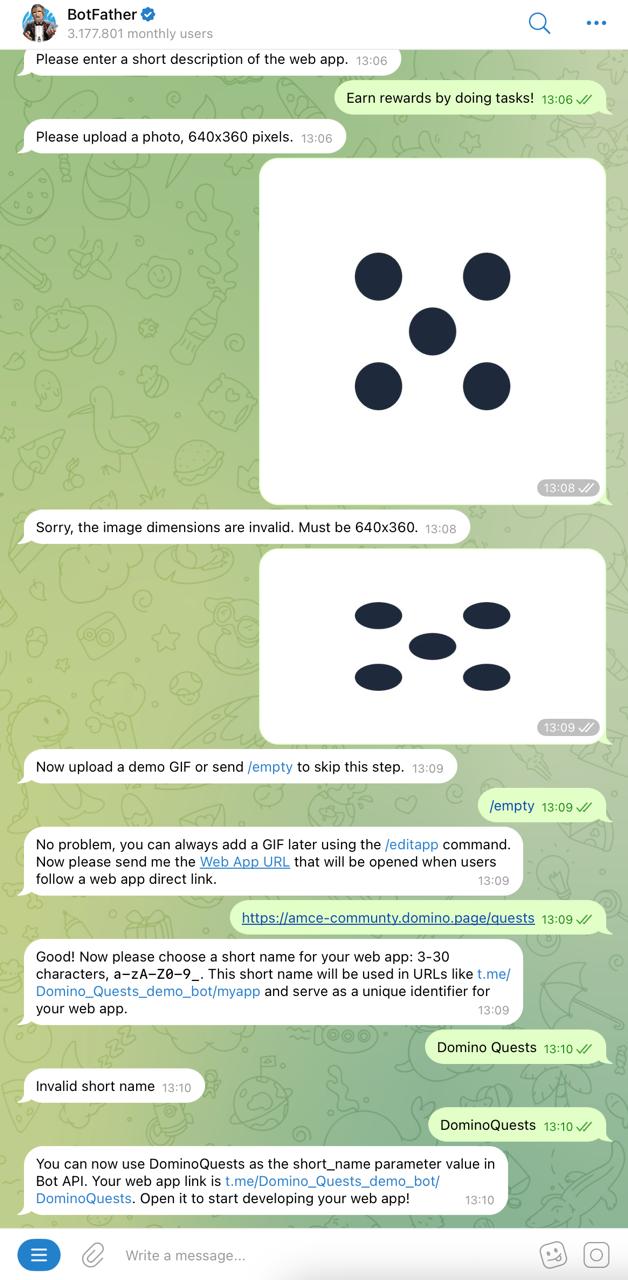
Screenshot guide of steps 1-12:
**Next, find your Telegram Bot ID: Using @raw\_data\_bot (Private Chat or Group)**
1. Open Telegram and in the global search bar, type @raw\_data\_bot and select the bot from the search results.
2. Send a message to the bot.
3. Add your bot to the chat
4. @raw\_data\_bot will return your Bot ID (Also called userid or bot chat ID)
5. 👉 Once done, copy your **Bot ID** and paste it into Domino:\
[Domino Portal → Settings](https://domino.run/portal/settings)
***
### 📌 Chapter 2 – Add the "Launch App" Button
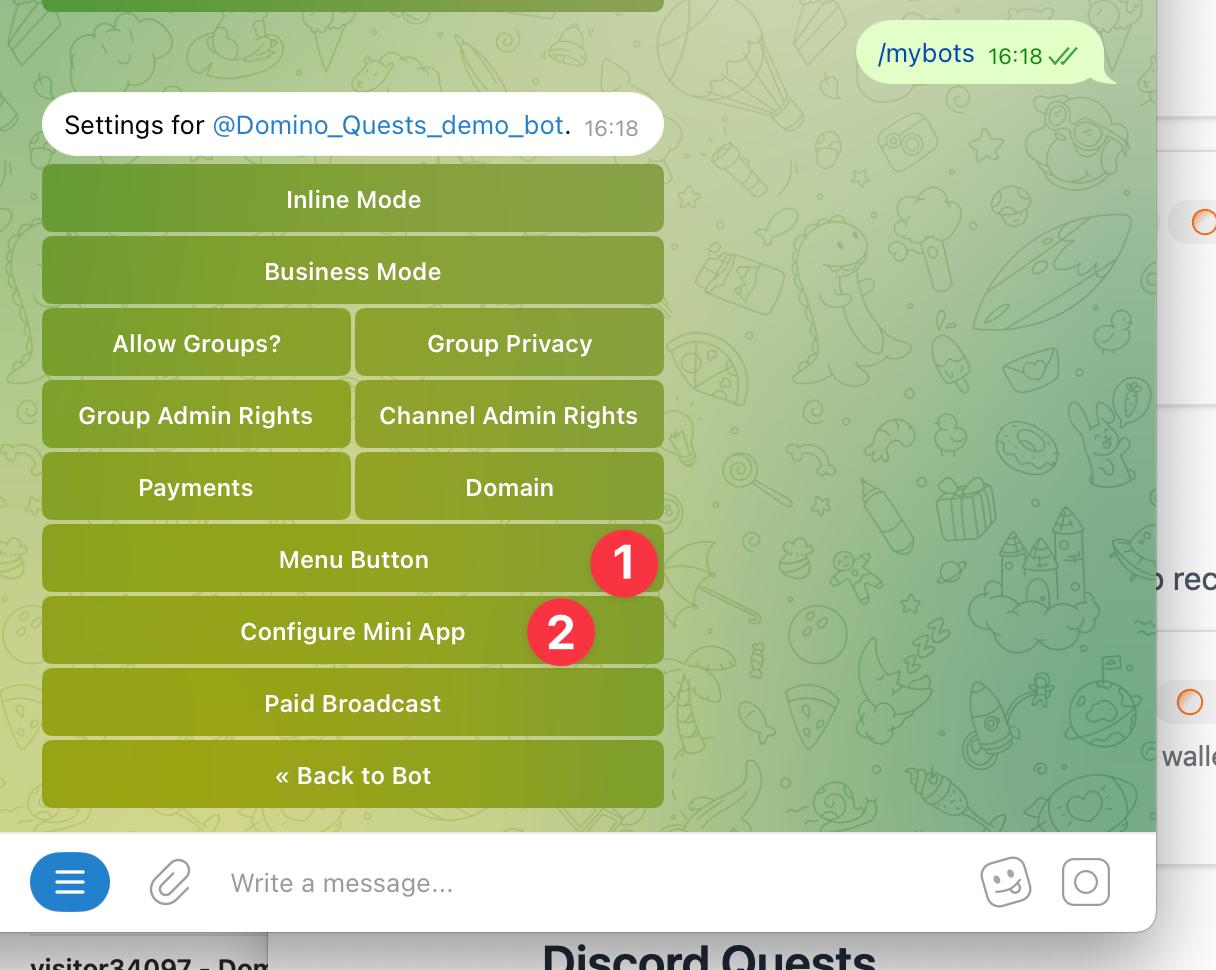
1. In [@BotFather](https://t.me/BotFather), run:
```
/mybots
```
2. Select your bot.
3. Go to **Bot Settings → Menu Button**.
4. Add your Domino Mini App URL:
```
https://[yoursubdomain].domino.page/quests
```
5. Do the same under **Configure Mini App**.
After a few minutes, Telegram will display the **Launch App** button in your bot menu.
{% hint style="info" %}
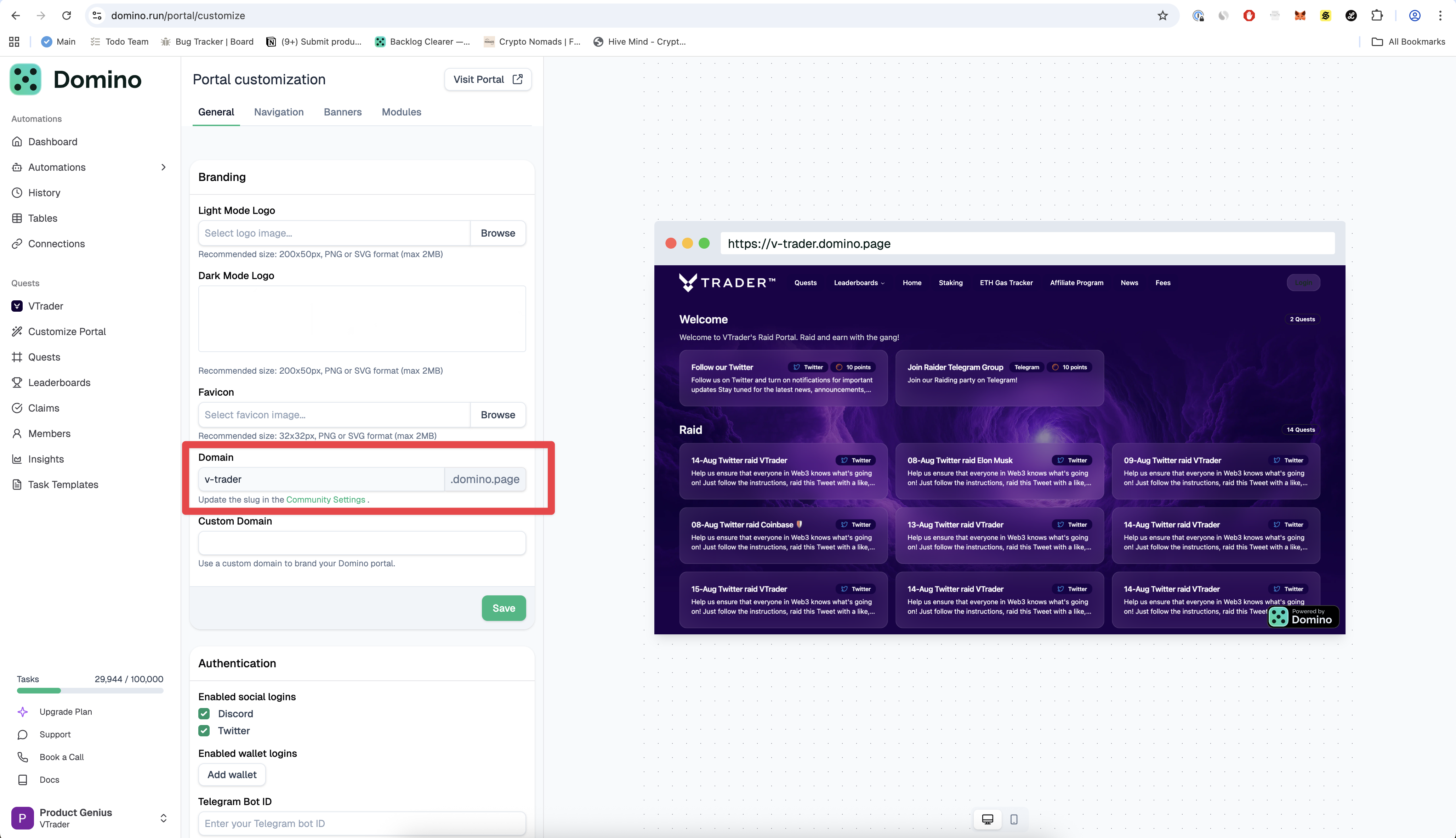
tip: You can find your subdomain here → [Domino Portal → Customize](https://domino.run/portal/customize)
{% endhint %}
***
### 📌 Chapter 3 – Make `/start` Launch Your Mini App (Optional)
#### ✅ Step 1. Register the Mini App URL
1. In [@BotFather](https://t.me/BotFather):
* `/mybots` → select your bot
* Go to **Bot Settings → Edit Bot → Edit Commands**
* Add:
```
start - Launch the app
```
* Ensure `/start` is visible in the **Bot Menu**
***
#### ✅ Step 2. Set the Mini App URL
1. In [@BotFather](https://t.me/BotFather):
* Go to **Bot Settings → Edit Bot → Edit Menu Button**
* Choose **Launch Web App**
* Paste your Domino Mini App URL (must be HTTPS and whitelisted).
***
#### ✅ Step 3. Handle `/start` in Your Bot Code
If your bot has a backend, respond to `/start` with a **Launch Mini App** button:
```json
{
"text": "Open Mini App",
"reply_markup": {
"inline_keyboard": [[
{
"text": "Launch",
"web_app": { "url": "https://[yoursubdomain].domino.page/quests" }
}
]]
}
}
```
### 🎉 You’re Done!
You now have a fully connected Telegram Mini App powered by Domino.\
Users can launch your quests instantly from the bot menu or `/start`.
.jpg?alt=media)
.jpg?alt=media)